

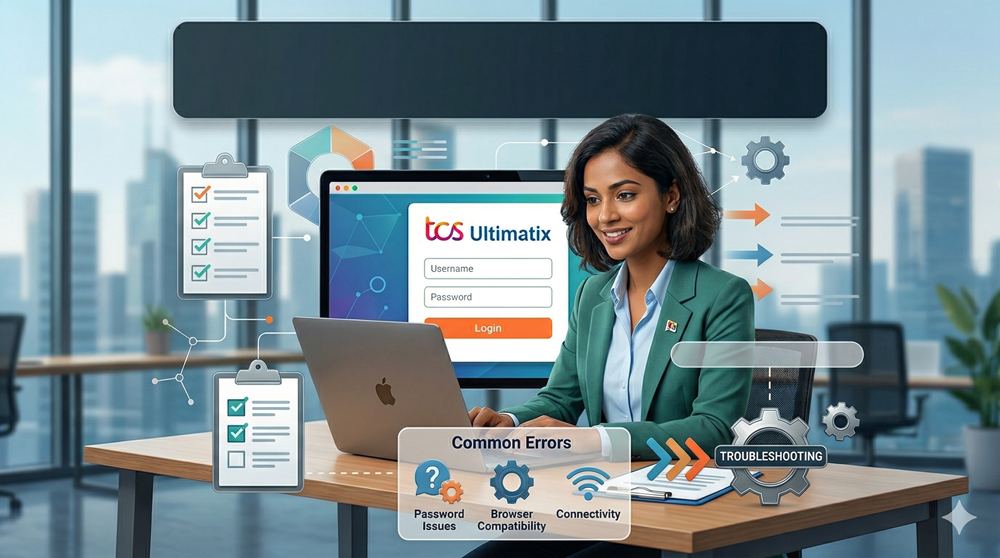
For employees of Tata Consultancy Services (TCS), navigating the digital workspace efficiently is crucial for a productive workday. At the heart of this digital infrastructure is TCS Ultimatix, the company’s primary enterprise portal. Whether you are a new joiner or a seasoned professional looking to optimize your portal usage, this comprehensive guide will walk you through the login processes, essential troubleshooting steps, and the robust features awaiting you post-login.
Understanding the TCS Ultimatix Portal
Overview of the Centralized ERP System
TCS Ultimatix functions as a highly customized ERP system (Enterprise Resource Planning), designed specifically to streamline and centralize internal operations. It acts as the digital headquarters for hundreds of thousands of TCS employees globally, unifying disparate administrative functions into a single, cohesive interface.
Essential Services Provided
The portal is designed to support the complete employee lifecycle. The primary services integrated into the platform include:
- Human Resources (HR): Managing employee profiles, benefits, and performance appraisals.
- Payroll: Seamless access to financial documents, tax declarations, and compensation details.
- Project Management: Tools for timesheet submissions, project tracking, and client billing.
Importance for Operations and Compliance
Pre-requisites for a Seamless Login Experience
Before attempting to access the platform, ensuring you have the correct credentials and system requirements will save you valuable time.
Possession of a Valid TCS Employee ID
Your TCS Employee ID acts as your primary identifier. You must know your exact ID number, which serves as the foundational component of your unique username.
Authenticator App or Registered Mobile Number
Because TCS handles highly sensitive corporate data, basic passwords are not enough. You must have access to either the Ultimatix Authenticator app (installed on your smartphone) or the mobile number registered in the corporate database to receive secure login prompts.
System Compatibility and Browser Settings
For the most stable experience, always use an updated web browser (Google Chrome, Mozilla Firefox, or Microsoft Edge). Ensure that JavaScript is enabled and that your browser is not blocking essential pop-ups from the *ultimatix.net* domain.
Step-by-Step Guide: How to Login to Ultimatix
Logging into the portal is designed to be highly secure yet user-friendly. Follow these practical, numbered steps to access your account successfully:
- Access the Official URL: Open your preferred, updated web browser and navigate strictly to the official address: www.ultimatix.net. Bookmark this page for future convenience.
- Enter Your Employee Username: On the main login page, type in your TCS Employee Username (usually your employee ID or a corporate-assigned variation) and click ‘Proceed’.
- Select Your Authentication Mode: You will be prompted to choose how you want to verify your identity. You can select either a standard Password login or the highly recommended Easy Auth method.
- Input Your AuthCode or Password:
* *If using Easy Auth:* Open the Ultimatix Authenticator app on your smartphone to generate an AuthCode or approve the push notification.
* *If using a Password:* Carefully type your secure, alphanumeric password into the provided field.
Troubleshooting Common Login and Connectivity Issues
Even with a perfectly configured system, you might occasionally run into access hurdles. Here is how to quickly resolve the most common issues.
Resolving ‘Invalid Credentials’ Errors
If you encounter an ‘Invalid Credentials’ message, first ensure that your Caps Lock key is turned off. Double-check that you haven’t added any accidental spaces before or after your username.
Procedures for Resetting a Forgotten Password
If you have forgotten your password, do not repeatedly guess, as this will lock your account. Instead, click on the “Forgot Password/Unlock Account” link on the login page. You will be prompted to verify your identity using your registered mobile number or alternate email address to securely generate a new password.
Clearing Browser Cache and Cookies
Frequent updates to the Ultimatix portal can sometimes conflict with older data stored on your computer. If the page fails to load or loops back to the login screen, clearing your browser cache and cookies is usually the most effective fix.
Contacting the TCS Global Helpdesk
If your account suffers a hard lockout (usually after multiple failed login attempts), self-service options may be disabled. In this case, you must contact the TCS Global Helpdesk directly via their toll-free number or internal ticketing system to verify your identity and restore access.
Security Protocols and Best Practices
Maintaining the security of the Ultimatix portal is a shared responsibility between TCS and its employees.
Enabling Multi-Factor Authentication (MFA)
The deployment of multi-factor authentication is non-negotiable for enterprise security. By requiring both something you know (your username) and something you have (your smartphone), MFA drastically reduces the risk of unauthorized access. Always ensure your Authenticator app is updated.
Recognizing and Avoiding Phishing Sites
Cybercriminals often create fake login pages that mimic corporate portals to steal credentials. Always verify that the URL in your browser’s address bar specifically reads https://www.ultimatix.net/. Educate yourself on common phishing tactics, and never click on unverified links sent via SMS or personal email claiming to be from TCS IT.
Safe Logout Practices
Maximizing Utility: Essential Features Post-Login
Once you have mastered the login process, the Ultimatix dashboard offers a wealth of tools to manage your professional life.
Viewing and Downloading Monthly Payslips
Navigate to the Global ESS (Employee Self-Service) portal to view your financial records. Here, you can easily download your monthly payslips, track variable pay, and manage your annual tax investment declarations securely.
Managing Leave Applications and Attendance Tracking
The Leave Management System allows you to check your accrued vacation time, apply for various types of leave, and track your daily attendance and timesheets. Managers can also use this tab to approve pending leave requests for their team members.
Accessing Internal Learning and Development (iEvolve)
Continuous upskilling is a core component of the TCS culture. Through Ultimatix, employees have direct access to iEvolve, the company’s proprietary Learning and Development platform. Here, you can enroll in new technical courses, track your learning credits, and prepare for critical industry certifications.
By mastering the login procedures, adhering to strict security practices, and understanding how to troubleshoot minor issues, you can turn TCS Ultimatix into a powerful, frictionless tool that enhances your daily corporate workflow.