
TL;DR: GetTransMac.com is a resource hub for TransMac, a Windows utility developed by Acute Systems that lets you read, write, and manage Mac-formatted disks—including APFS and HFS+ formats—directly from a Windows PC. This guide covers TransMac’s key features, how to install and use it, advanced tips, common troubleshooting fixes, and how it compares to alternatives like MacDrive and Paragon HFS+.
If you’ve ever plugged a Mac-formatted hard drive into your Windows PC and watched your computer completely ignore it, you know the frustration. No file explorer window. No prompt. Just… nothing. It’s as if the two operating systems are speaking entirely different languages—because, in a way, they are.
Cross-platform file access has been a genuine pain point for anyone who works across Mac and Windows environments. Maybe you’re a video editor who uses a Windows workstation at home but hands off projects on a Mac-formatted drive. Maybe you’re an IT administrator managing a mixed-OS office. Or maybe you simply inherited a Mac drive from a colleague and need to pull one file off it. Whatever your situation, the problem is real.
That’s where GetTransMac.com comes in. The platform serves as the go-to resource for TransMac, a Windows utility developed by Acute Systems that directly bridges this gap. TransMac allows Windows users to access, manage, and even create Mac-formatted disks—without owning a Mac, dual-booting, or performing technical gymnastics.
This guide walks you through everything you need to know: what TransMac does, how to get it running, advanced use cases, troubleshooting tips, and a clear-eyed comparison against the main alternatives. By the end, you’ll know exactly whether TransMac is the right tool for your setup—and how to get the most out of it if it is!
Why Can’t Windows Read Mac-Formatted Disks Natively?
Before diving into the solution, it helps to understand the problem. Mac and Windows use completely different file systems to organize data on storage devices.
Windows relies on NTFS (New Technology File System) and FAT32 for most drives. Apple, on the other hand, uses its own file systems: HFS+ (Hierarchical File System Plus), and more recently, APFS (Apple File System), which was introduced with macOS High Sierra in 2017 and is now the default format for modern Macs.
Windows has no built-in ability to read HFS+ or APFS drives. When you plug in a Mac-formatted disk, Windows sees the device but can’t interpret the file structure—so it either shows the drive as unreadable or prompts you to format it (which would erase everything on it, so please don’t do that!).
The result? Two of the world’s most popular computing ecosystems are, by default, unable to share files through direct disk connections. That incompatibility is the exact problem TransMac was built to solve.
What Is GetTransMac.com and How Does TransMac Work?
GetTransMac.com is a dedicated platform providing information, downloads, and guidance for TransMac—a software application developed by Acute Systems specifically for Windows users who need to interact with Mac-formatted storage.
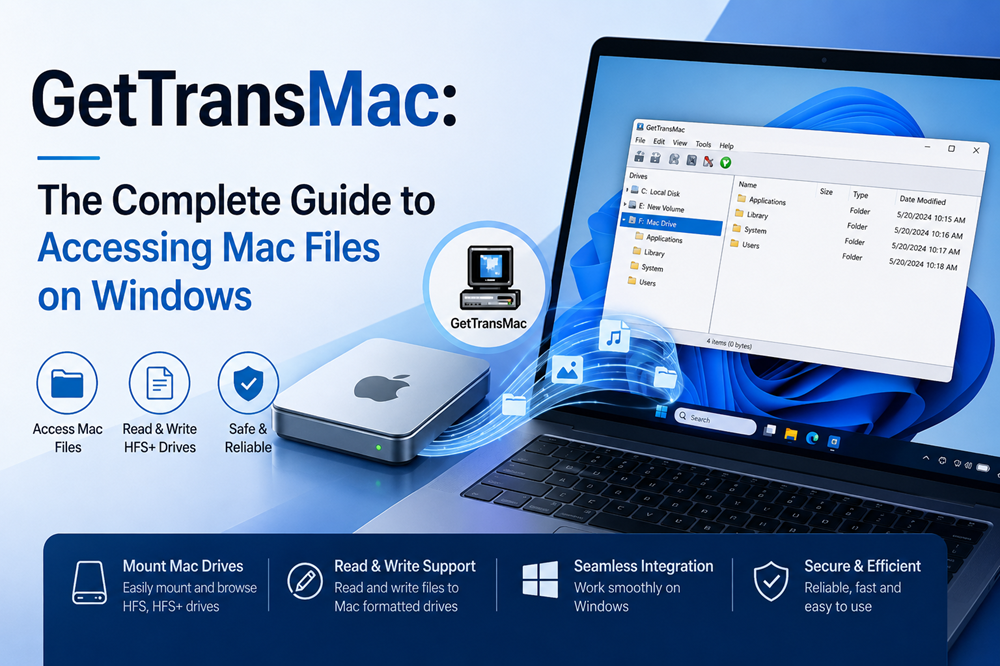
TransMac works by installing a compatibility layer on your Windows system that allows it to interpret Mac file systems directly. Once installed, it gives Windows the ability to read and write to HFS+ and HFSX disks, as well as read APFS volumes (the format used by modern Macs running macOS High Sierra and later). The software presents these Mac disks through a familiar, Windows Explorer-style interface, so navigating Mac drives feels intuitive right from the start.
TransMac supports a broad range of Mac storage media:
- External hard drives and SSDs formatted for Mac
- USB flash drives
- CD, DVD, and Blu-ray optical media
- Mac disk image files (DMG format)
- Disk images used for macOS installations and backups
The software is fully compatible with Windows 7, 8, 10, and 11, and it carries an editor’s rating of 4.6/5 based on user feedback. A 15-day free trial is available, after which a license must be purchased for continued use.
What Are the Key Features of TransMac for Windows Users?
TransMac packs a surprisingly comprehensive toolkit for cross-platform disk management. Here’s what it brings to the table:
Read and Write Mac Disks from Windows
The core capability of TransMac is full read and write access to HFS+ and HFSX Mac disks. You can copy files to and from Mac-formatted drives, rename them, delete them, and organize them—all from your Windows PC. APFS volumes (used by newer Macs) are supported in read-only mode.
Disk Imaging
TransMac allows you to create exact disk image replicas of Mac-formatted drives. This is invaluable for backup purposes or for transferring an entire disk’s contents to a new storage medium. You can also restore a disk image back to a physical disk, effectively cloning a Mac drive from a Windows machine.
Bootable Mac USB Drive Creation
One of TransMac’s standout features is the ability to create bootable Mac USB drives directly from Windows. This is a lifeline for Mac users whose system has crashed or needs a fresh macOS installation—and who only have access to a Windows PC at that moment. You’ll need a macOS installer (DMG file) to make this work, and a USB drive with at least 16GB of capacity.
File Management
Beyond simple file copying, TransMac offers full file management capabilities: creating new folders, renaming files and folders, moving data between locations, and deleting unwanted files—all performed directly on Mac-formatted disks from your Windows environment.
Disk Formatting and Partitioning
TransMac can format Mac disks to different file systems and create new partitions. Right-clicking a connected disk within the application brings up formatting and partitioning options. This is useful when preparing a new drive for use in a Mac environment, even when working from Windows.
Access to Time Machine Backups
Yes, you read that right! TransMac can access and browse Time Machine backups stored on Mac-formatted drives. For anyone trying to retrieve specific files from a Mac backup without access to a Mac, this is a genuinely impressive capability.
Encrypted Disk Support
TransMac can access encrypted Mac disks, provided you have the correct decryption key or password. This ensures that security doesn’t become a barrier to legitimate access.
How Do You Install and Use TransMac on a Windows PC?
Getting TransMac up and running is straightforward. Here’s a step-by-step walkthrough!
Installing TransMac
- Download the installer from GetTransMac.com. The download page provides the latest stable version.
- Locate the installer file in your Downloads folder and double-click it to begin.
- Allow permissions when Windows User Account Control (UAC) prompts you—click “Yes” to proceed.
- Select your language, read and accept the End User License Agreement, then choose your installation location. The default path (C:\Program Files\TransMac) works fine for most users.
- Complete installation and launch TransMac from your Start menu or desktop shortcut.
Accessing a Mac Disk
- Connect your Mac-formatted disk to your Windows PC via USB, Thunderbolt, or your preferred connection method.
- Launch TransMac (administrative privileges may be required—click “Yes” if prompted).
- Locate your Mac disk in the left-hand panel. TransMac displays all connected drives, including the Mac-formatted one.
- Click on the disk to expand its contents and browse folders just as you would in Windows File Explorer.
- Right-click on any file or folder to access options: Copy, Rename, Delete, or create a new folder.
It’s genuinely that simple! The familiar interface makes the learning curve almost nonexistent for most Windows users.
Advanced Tips and Tricks for Getting the Most Out of TransMac
Once you’re comfortable with the basics, a few extra techniques can significantly expand what you can do with TransMac!
Creating a Bootable Mac USB Drive Step by Step
- Obtain the macOS installer DMG file (downloaded from a Mac via the Mac App Store).
- Insert a USB drive with at least 16GB of space—back up anything on it first, as this process will erase the drive.
- In TransMac, right-click on the USB drive in the left panel and select “Restore with Disk Image.”
- Browse to and select your macOS DMG file.
- Confirm the action and let TransMac complete the transfer. Avoid interrupting this process!
- Once complete, eject the USB drive and test it on a Mac by holding the Option key during startup to select it as the boot device.
Cloning a Mac Disk
To clone a Mac disk, create a disk image from the source drive (right-click the disk → “Create Image File from Disk”), then restore that image to a second disk (right-click the target disk → “Restore Disk from Image”). This is a reliable method for migrating Mac data or creating full backups.
Verify DMG Integrity Before Writing
Before writing a macOS image to a USB drive, verify the DMG file’s integrity to avoid boot failures caused by corrupted image files. A failed or interrupted download is more common than you’d think, and copying a corrupted file is a frustrating waste of time.
Use a High-Quality USB Drive
Not all USB drives perform equally under the demands of a bootable drive. Use a drive with strong read/write speeds and at least 16GB of capacity for macOS installers. Cheap, slow drives are often the culprit behind failed bootable USB attempts.
Who Benefits Most from TransMac?
TransMac isn’t a niche tool for power users only—plenty of different people find it genuinely useful!
IT Professionals and System Administrators managing mixed Mac-Windows environments will appreciate TransMac’s ability to access Mac drives, create bootable recovery media, and manage disk partitions—all without needing a dedicated Mac workstation for every task.
Creative Professionals such as video editors, graphic designers, and photographers who collaborate across platforms often exchange work on external drives. TransMac makes it simple to access a Mac-formatted drive on a Windows editing station without reformatting and losing data.
Casual Users and Home Enthusiasts who receive a Mac-formatted USB drive or external disk from a friend, family member, or colleague can retrieve their files without needing to buy new hardware or reformat the drive.
Travelers and Consultants who carry a Mac-formatted portable drive but find themselves working on a Windows machine in a pinch will find TransMac an excellent safety net.
How Do You Fix Common TransMac Issues?
Like any software, TransMac occasionally runs into hiccups. Here are the most common problems and how to solve them!
TransMac Isn’t Detecting My Mac Disk
- Ensure the drive is properly connected and recognized by Windows in Disk Management (search “Disk Management” in the Start menu).
- Launch TransMac with administrator privileges—right-click the TransMac icon and select “Run as Administrator.”
- Try a different USB port or cable.
The Bootable USB Drive Won’t Boot on My Mac
- Verify the DMG file’s integrity before attempting the process again.
- Ensure the USB drive has been properly formatted. TransMac requires specific formatting steps before writing the macOS image.
- Check that the macOS version you’re installing is compatible with the target Mac model.
TransMac Crashes or Freezes
- Update TransMac to the latest version available on GetTransMac.com, as updates frequently address stability issues.
- Close any other disk-heavy applications running in the background.
- Restart your PC and retry.
Antivirus Software Is Flagging TransMac
Some antivirus tools flag TransMac with false positives due to its low-level disk access capabilities. TransMac is a legitimate, widely-used utility developed by Acute Systems. If your antivirus flags it, add TransMac to your antivirus exclusion list, but always ensure you’re downloading it from the official source (GetTransMac.com) to avoid actual malware risks.
How Does TransMac Compare to MacDrive and Paragon HFS+?
Three tools dominate the Windows-to-Mac disk access space: TransMac, MacDrive, and Paragon HFS+ for Windows. Each has its strengths!
| Feature | TransMac | MacDrive | Paragon HFS+ for Windows |
| HFS+ Read/Write | ✅ | ✅ | ✅ |
| APFS Support | Read-only | Limited | Read/Write (some versions) |
| Bootable USB Creation | ✅ | ❌ | ❌ |
| Disk Imaging | ✅ | ❌ | ❌ |
| Disk Formatting | ✅ | ✅ | ✅ |
| Optical Media Support | ✅ (CD/DVD/Blu-ray) | Limited | ❌ |
| Windows Compatibility | Win 7–11 | Win 10–11 | Win 10–11 |
| Trial Available | 15-day free trial | Trial available | Trial available |
TransMac is the most versatile of the three, particularly for users who need to create bootable Mac USB drives or work with disk images. Users in Mac forums consistently recommend TransMac as the most reliable option for these tasks.
MacDrive has a more polished interface but comes at a higher price point—and some users have reported issues with it corrupting Mac-formatted hard drives, which is a significant concern.
Paragon HFS+ for Windows is a leaner, more focused tool. It’s excellent for straightforward HFS+ read/write tasks and is well-regarded for stability. At approximately $19.95, it’s a strong choice if you simply need to access HFS+ drives without the additional features TransMac offers.
Choose TransMac if you need to create bootable Mac USB drives, work with disk images, access optical media, or want a comprehensive toolkit for cross-platform Mac disk management. Choose Paragon HFS+ if your only goal is reliable, day-to-day read/write access to HFS+ drives and you don’t need the advanced features TransMac provides.
The Future of Cross-Platform File Management Starts Here
The Mac-Windows divide isn’t going away anytime soon. Apple and Microsoft continue to develop their respective ecosystems with proprietary file systems, and the need for tools that bridge the gap will only grow as more people work across both platforms.
TransMac, available through GetTransMac.com, remains one of the most capable and versatile solutions for Windows users who need meaningful access to Mac-formatted storage. Whether you’re recovering critical files, building a bootable recovery drive at 11pm before a big presentation, or managing Mac disks as part of your daily IT workflow—TransMac delivers.
Download the 15-day free trial from GetTransMac.com and give it a proper test run with your specific use case. Chances are, it’ll earn a permanent spot in your Windows toolkit!
Frequently Asked Questions
What is GetTransMac.com used for?
GetTransMac.com is the resource hub for TransMac, a Windows utility developed by Acute Systems. It allows Windows users to read, write, and manage Mac-formatted disks—including HFS+, HFSX, and APFS formats—directly from a Windows PC without requiring a Mac computer.
Is TransMac free to use?
TransMac offers a 15-day free trial. After the trial period ends, a paid license must be purchased to continue using the software. The free trial includes full functionality, so you can thoroughly evaluate it before committing.
Can TransMac read APFS drives from modern Macs?
Yes, TransMac supports APFS (Apple File System), which is the default file system on Macs running macOS High Sierra and later. However, APFS access in TransMac is currently read-only, meaning you can view and copy files from APFS drives but cannot write to them.
Can I create a bootable Mac USB drive on Windows using TransMac?
Yes! This is one of TransMac’s standout capabilities. You’ll need a macOS installer (DMG file) and a USB drive with at least 16GB of capacity. TransMac writes the image to the USB drive, making it bootable on a Mac. This is especially useful for macOS recovery and fresh installations.
Is TransMac safe to download and use?
Yes, TransMac is a legitimate and widely trusted utility developed by Acute Systems. Some antivirus programs may flag it due to its deep disk-access capabilities, but these are false positives. Always download TransMac from GetTransMac.com or the official Acute Systems website to ensure you’re getting the genuine software.
Does TransMac work on Windows 11?
Yes, TransMac is compatible with Windows 7, 8, 10, and 11. It works seamlessly across all modern versions of Windows.
What is the difference between TransMac and Paragon HFS+ for Windows?
TransMac offers a broader feature set, including bootable USB creation, disk imaging, optical media support, and partition management. Paragon HFS+ for Windows focuses specifically on HFS+ read/write access and is a strong, stable option for that narrower use case. Choose TransMac for comprehensive Mac disk management; choose Paragon HFS+ for straightforward file access on a budget.
Can TransMac recover deleted files from a Mac disk?
No. TransMac does not include built-in file recovery or disk repair features. Its primary purpose is accessing and managing Mac-formatted disks. For data recovery from Mac drives, a dedicated recovery tool would be more appropriate.